

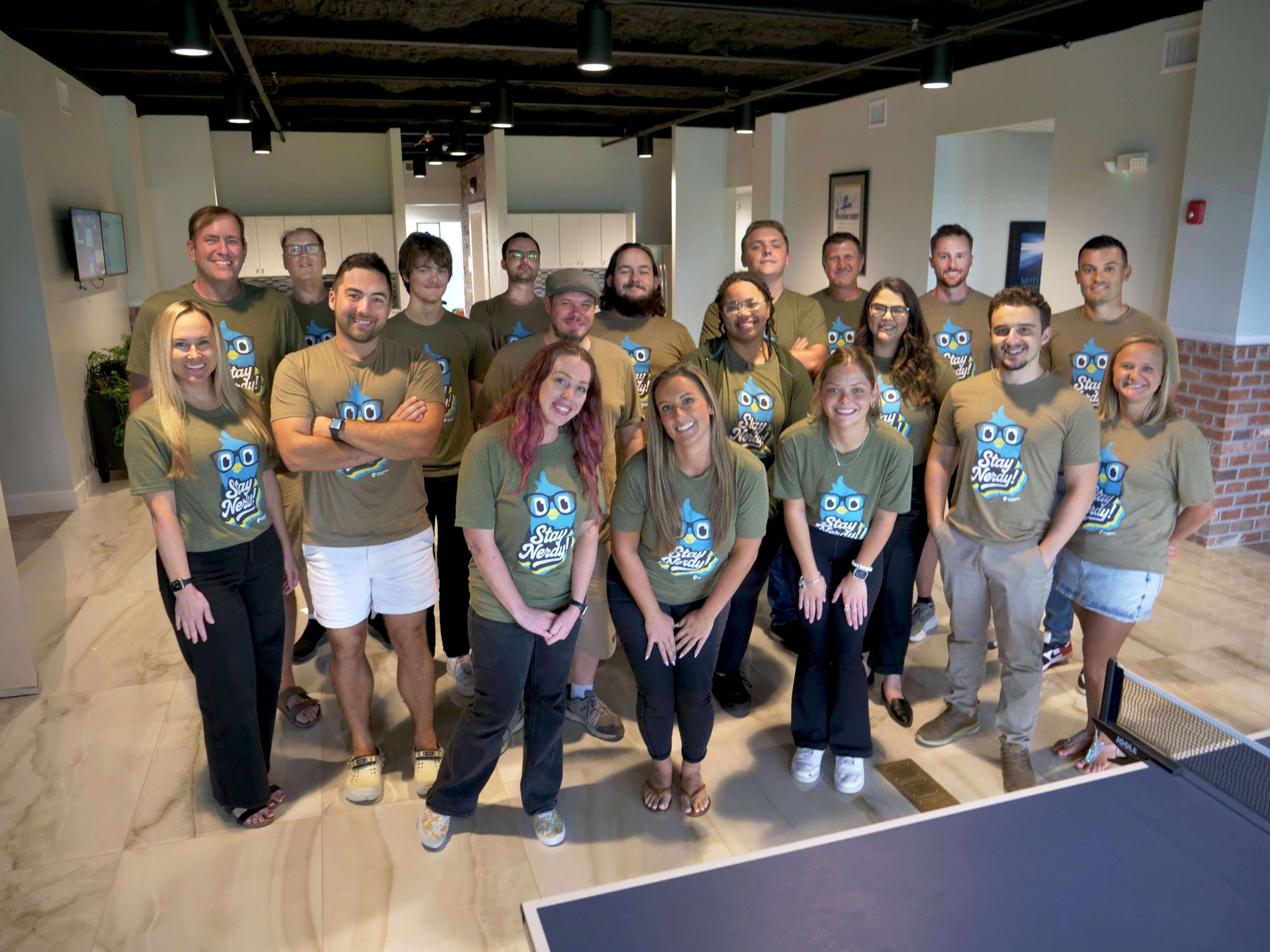
On-Demand Learning
.svg)
.svg)
.svg)
.svg)
Comprehensive library of hundreds of courses


Start With the FREE Community Plan
Pragmatic Works free community plan gives you lifetime access to 50+ courses on topics, such as Power BI, Excel, Power Apps, Azure, Power Automate, T-SQL, and more!
- Get preview access to hundreds of courses
- Access courses from anywhere with our mobile-friendly platform
- NEW: Access the first 2 levels of CertXP for every certification path!
- Shareable certificates upon course completion via LinkedIn & PDF download



Bootcamps
Learn about the Microsoft data and cloud systems in one of our live bootcamps, which cover topics from Azure to DAX. Training takes places across two to three days and can be accessed from anywhere when attending a virtual bootcamp. New sessions take place every month.
.jpg?width=655&height=528&name=Season%20learning%20pass%20(1).jpg)
Season Learning Pass
Get access to our very best training offerings for successful up-skilling and adoption with Pragmatic Works Season Learning Pass.
What you’ll get:
- Full access to all our on-demand learning courses
- Unlimited enrollment in any of our live, instructor-led bootcamps
- 3 Hours of one-on-one private virtual mentoring
- Courses labs and files
- Real-World Applications for Your Specific Job Function
.svg)
.svg)
.svg)
.svg)
97% of fortune 100 companies trust us
Thousands of companies use Pragmatic Works to learn how to best develop and administer their analytics and data systems.








What our students have to say
 Shelly S. - Power Platform in your PJs attendee
This class was really terrific. I have already done a little work with Power BI, but I learned a ton. They tailored it to all levels. Honestly, probably the best online class I have ever had.
 Gene M. - Power Platform Virtual Conference attendee
Overall, I love the virtual conference that was put together. The speakers prove they are experts in their related subjects. I learned many things; from fine-tuning my skills to stuff I never would have considered or thought of.
 Perry C. - Intro to SQL Database student
The instructor for this course was so easy to follow and understand. I found the content to be well organized and well-focused on the point. It should be used as a model for other courses. I watched every minute of it, and I am a 20-year veteran of on-prem SQL.
 David H. - Advanced DAX student
Excellent course and great instructor. Helped me understand the more advanced concepts. The examples can be applied at work immediately which is key to showing management the value of these courses.
Get our special offers directly to your email

.png?width=564&height=618&name=Vector%20(2).png)
-2.png?width=380&height=384&name=Vector%20(14)-2.png)