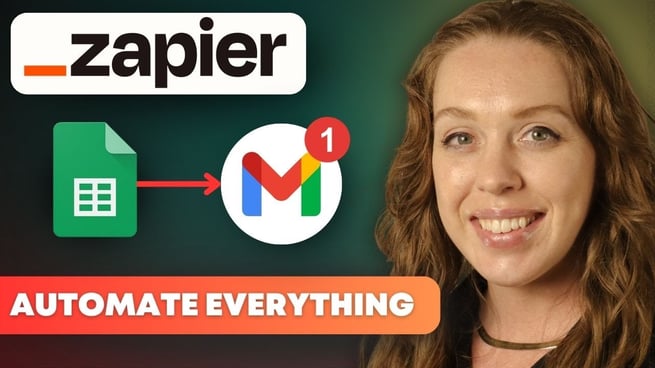
Automate Your Google Apps With Zapier!
In today's fast-paced world, time is of the essence, and automating tasks is key to staying efficient. If you're tired of manually checking your Google Sheets for updates, there’s an easy solution: Zapier. This tool lets you automate actions across various apps, including Google Sheets and Gmail. In this blog post, we will walk you through how to automate email notifications every time a new row is added in Google Sheets using Zapier. Author: Allison Gonzalez, Microsoft Certified Trainer at Pragmatic Works
What is Zapier?
Zapier is a powerful tool that connects thousands of apps and automates workflows between them. It allows users to create "Zaps" — automated workflows that trigger an action in one app based on an event in another. For example, when a new row is added to a Google Sheet, Zapier can send you an email notification through Gmail.
Step-by-Step Guide to Setting Up Your First Zap
Now, let’s break down how to set up your first Zap:
Step 1: Sign Up for Zapier
- First, head to Zapier.com and sign up for an account.
- You can start with the free plan, which offers plenty of functionality to get you started.
Step 2: Create a New Zap
- After logging in, navigate to the left menu and click the bright orange “Create Zap” button.
- Alternatively, you can go to the "Discover" section and search for a pre-built template, such as the one that notifies you about new Google Sheets entries via Gmail.
Step 3: Set the Trigger
- A trigger is an event that will initiate the action. In this case, the trigger is a new row being added in Google Sheets.
- When you select "Google Sheets" as the app, you’ll need to connect your Google account if it's not already linked.
- Once connected, select the spreadsheet and worksheet that you want Zapier to monitor for new entries.
Step 4: Choose Your Action
- Now, select "Gmail" as the app where the action will take place.
- For this example, you’ll want to choose the “Send Email” action.
- Connect your Gmail account and fill in the required details like the recipient’s email address, the subject line, and the body content of the email.
Step 5: Add Dynamic Content
- For a more personalized and dynamic email, you can add details from the newly added row in your Google Sheet.
- Using dynamic content, you can pull in specific details such as the date, class name, instructor name, or topic.
Step 6: Test Your Zap
- Once all the details are set, it's time to test the Zap.
- Zapier will run through the trigger and action process to ensure that everything is working smoothly.
- If the test is successful, Zapier will send an email to the designated address with details from the new row in Google Sheets.
Step 7: Turn on Your Zap
- After confirming that everything works as expected, you can turn on the Zap.
- Now, every time a new row is added to the specified Google Sheet, an email will be sent automatically.
Benefits of Using Zapier for Automation
- Time-saving: No need to manually check your Google Sheets; Zapier does the work for you.
- Easy to set up: With a user-friendly interface and templates, setting up Zaps is quick and easy.
- Scalability: You can create multiple Zaps to automate tasks for other apps, saving even more time.
- Free Plan: Zapier’s free plan offers many useful features that are perfect for personal use or small businesses.
Conclusion
Zapier is a game-changer when it comes to automating repetitive tasks. By following these simple steps, you can set up a workflow that notifies you every time a new entry is added to a Google Sheet, freeing up your time for other important tasks. With Zapier, you can connect thousands of apps to automate your workflow and increase productivity.
If you're interested in learning more about automation, check out the full course on Zapier, linked below. Plus, don’t forget to use the code "Allison 40" to get 40% off your on-demand membership!
Don't forget to check out the Pragmatic Works' on-demand learning platform for more insightful content and training sessions on Zapier and other Microsoft applications. Be sure to subscribe to the Pragmatic Works YouTube channel to stay up-to-date on the latest tips and tricks.
Sign-up now and get instant access
ABOUT THE AUTHOR
Allison graduated from Flagler College in 2011. She has worked in management and training for tech companies for the past decade. As a Microsoft Certified Trainer, her primary focus is helping our customers learn the ins and outs of Power BI, along with Excel and Teams.
Free Community Plan
On-demand learning
Most Recent
private training

Leave a comment