




Excel,
Azure Power Apps,
Power Apps Functions,
Power Apps Environments,
Excel Functions,
Excel Guide
Building Your First Power App from Excel Data
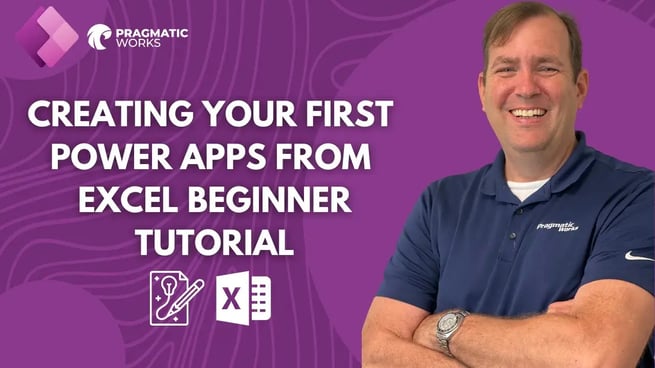
In this tutorial video, Brian Knight of Pragmatic Works walks viewers through the process of creating their first Power App using Excel data. From downloading the dataset to publishing the app, Brian demonstrates a step-by-step approach suitable for beginners and professionals alike.
Getting Started with Power Apps
Brian begins by emphasizing the importance of having a development environment. He recommends downloading the Power Apps Developer Plan, which provides a free environment to practice with Dataverse. Dataverse acts as a cloud-based SQL Server database integrated into Power Apps, enabling users to create tables without needing extensive database or developer skills.
Key points from the setup:
- Download the Excel dataset from data.gov for a consistent starting point.
- Ensure the development environment is selected correctly at make.powerapps.com.
- Understand the concept of “environment” as a server containing all your Power Apps, automation, and user data.
Importing Excel Data into Dataverse
Once the environment is ready, Brian walks through importing the downloaded Excel file into Dataverse. He notes the following steps:
- Navigate to the data section and select “Tables” to create a new table from the Excel file.
- Browse and select the downloaded Excel file from your local device.
- Allow Power Apps to analyze the spreadsheet and detect data types automatically (text, number, currency, date, etc.).
- Adjust any incorrect data types to ensure accuracy in the app, such as converting columns from text to currency.
- Rename columns as needed to create meaningful table headers, improving the usability of the app.
Building the App with Power Apps Studio
Brian then demonstrates building the app interface:
- Use the guided wizard in Power Apps Studio to generate the initial app based on the uploaded table.
- Add and configure galleries, forms, and search boxes to display and interact with the data.
- Simulate the app across multiple devices and orientations (tablet, iPhone, iPad, Android) to ensure responsiveness.
- Edit data within the app, including adding, updating, and deleting records, directly from the Dataverse tables.
Enhancing the App’s Usability
Brian provides tips to make the app more user-friendly:
- Adjust layouts, colors, and themes to match organizational branding or personal preferences.
- Enable multi-line text inputs for detailed descriptions.
- Configure search functions to scan multiple columns simultaneously, allowing users to quickly locate records.
- Set primary keys for tables to ensure unique identification of each record.
Advanced Features and Tips
While the video focuses on a beginner-friendly approach, Brian touches on additional capabilities:
- Connecting multiple tables including SharePoint lists or SQL Server databases to expand app functionality.
- Using Power Automate integration for workflows and automation within the app.
- Simulating app behavior on different device sizes to ensure a responsive design.
- Editing and customizing icons, gallery layouts, and display properties for better user experience.
Publishing and Accessing the App
After building and refining the app, Brian demonstrates the publishing process:
- Click the publish button in Power Apps Studio to make the app available.
- Assign a name and save the app.
- Access the app on mobile devices or tablets through the Power Apps mobile application.
- Test the app thoroughly to ensure that data updates and user interactions work seamlessly.
Pragmatic Works Learning Resources
Brian Knight emphasizes that this video is part of Pragmatic Works’ broader educational resources, including classroom-style tutorials, hackathons, and guided projects. Learners are encouraged to explore additional courses and join interactive sessions for hands-on practice.
Overall, this video provides a practical introduction to Power Apps for anyone looking to turn Excel datasets into fully functional applications. Brian Knight’s approach highlights simplicity, accessibility, and step-by-step guidance, making it easy for beginners to follow along and build their first Power App successfully.
Don't forget to check out the Pragmatic Works' on-demand learning platform for more insightful content and training sessions on Power Apps and other Microsoft applications. Be sure to subscribe to the Pragmatic Works YouTube channel to stay up-to-date on the latest tips and tricks.
Sign-up now and get instant access
ABOUT THE AUTHOR
SQL Server MVP and founder of Pragmatic Works. Brian has been working with SQL Server as a DBA and business intelligence professional since 1998. He has written more than 15 books on the topic and has spoken at dozens of conferences.
Free Community Plan
On-demand learning
Most Recent
private training
![Append in Power Query [Power Query in Excel and Power BI Series - Ep. 2]](https://pragmaticworks.com/hs-fs/hubfs/maxresdefault-Nov-24-2025-07-36-43-5635-PM.jpg?width=406&name=maxresdefault-Nov-24-2025-07-36-43-5635-PM.jpg)
![Merge in Power Query [Power Query in Excel and Power BI Series - Ep. 3]](https://pragmaticworks.com/hs-fs/hubfs/maxresdefault-Nov-24-2025-06-17-05-3117-PM.jpg?width=406&name=maxresdefault-Nov-24-2025-06-17-05-3117-PM.jpg)


-1.png)
Leave a comment