In this Pragmatic Works training session, Nate Halliwell walks viewers through one of the most underrated efficiency boosters in the Power Platform: Dataverse Word Document Templates. He explains how users can dynamically generate polished documents directly from Dataverse tables—without requiring code, flows, or complex setups. The lesson covers downloading schema-driven templates, customizing Word files using XML mapping, deploying templates to all users, and even migrating templates between environments.
Understanding the Goal
Nate begins by demonstrating a simple model-driven app with two tables: Courses and Course Evaluations. The objective is to create a standardized Word document template that allows users to “print” any selected record with all of its related data. While alternatives like Power Automate and custom code exist, Nate focuses on the quickest, most accessible method built directly into Dataverse.
Downloading the Base Template
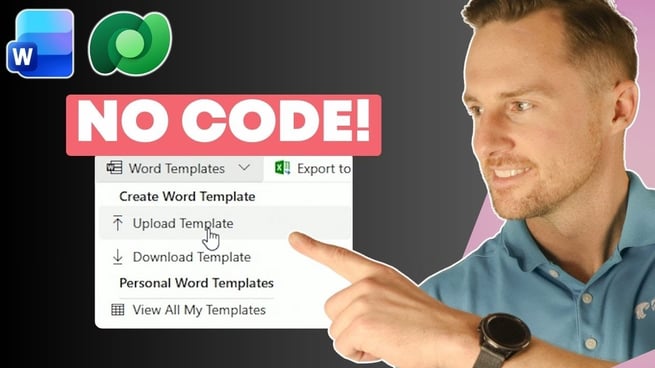
Within the model-driven app, Nate selects a record to reveal the Word Templates option. Although no template exists yet, he clicks Download Template to generate a base Word file tied to the schema of the selected Dataverse table.
During this step, Nate chooses which related tables to include:
- One-to-many: Course Evaluations
- Many-to-one: Instructor lookup from the User table
Once downloaded, the Word file appears blank, but it secretly contains the Dataverse schema embedded within XML structures.
Using XML Mapping to Build Dynamic Content
Nate enables the Word Developer tab and opens the XML Mapping Pane. Inside, he locates the custom schema corresponding to the Course table. Expanding the XML tree reveals every field from the course record, plus fields from related instructor and evaluation tables.
To design the template layout, Nate adds:
- A header section featuring the Pragmatic Works logo
- Course metadata such as name, subject, and publish date
- Instructor information including job title, email, and phone number
Each field is inserted using Content Controls (plain text), ensuring the final document populates dynamically from Dataverse data.
Building Repeating Sections for Related Records
A critical portion of the tutorial shows how to include multiple related records—such as several course evaluations—using a Repeating Section.
For this, Nate:
- Creates a four-column table for evaluator, date, rating, and comments
- Highlights the second row
- Maps it to the Course Evaluations relationship via Insert Repeating Section
- Places XML-bound fields into each column
This ensures that any number of evaluations populate automatically when the document is generated.
Uploading the Personal Template
After designing the document, Nate saves it as print course.docx and uploads it via the Word Templates menu inside the app. This creates a personal template visible only to the creator. Clicking the template downloads a generated Word file filled with real data, confirming everything works as intended.
Publishing for All Users
To make the template available across the organization, Nate navigates to:
- Advanced Settings in the model-driven app
- Templates → Document Templates
- Uploads the same file as a System Template
Refreshing the application shows the template under global Word Templates, ensuring all end-users can access it.
Migrating Templates Between Environments
Nate ends the video with a powerful trick: using XRM Toolbox and the Document Template Mover plugin to transfer templates between environments without rebuilding them.
He selects:
- Source Environment: the environment containing the template
- Target Environment: another dev or production environment
After clicking Transfer Templates, the template appears instantly in the target environment—no extra configuration needed.
Final Thoughts
Nate concludes by encouraging organizations to leverage Word templates to eliminate repetitive copy‑and‑paste work. By empowering users with automated document creation, teams save time and improve accuracy.
Don't forget to check out the Pragmatic Works' on-demand learning platform for more insightful content and training sessions on Dataverse and other Microsoft applications. Be sure to subscribe to the Pragmatic Works YouTube channel to stay up-to-date on the latest tips and tricks.






-1.png)
Leave a comment