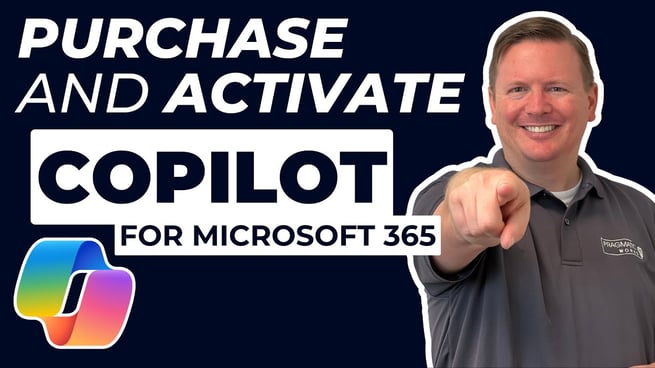
In a recent video from Pragmatic Works, Devin Knight breaks down the newest updates surrounding Microsoft 365 Copilot, a powerful productivity tool designed to bring AI into familiar Microsoft apps like Word, Excel, PowerPoint, Outlook, and more. This blog post summarizes the key announcements and provides a step-by-step guide to purchasing and activating Copilot in your organization.
🔔 Major Announcements
- Copilot is now available to all users – not just large enterprises.
- Two options are now available:
- Copilot Pro: $20/month for individual users
- Copilot for Microsoft 365: Designed for businesses of any size
- No more 300-user minimum – even a single-user business can access Copilot for Microsoft 365.
- Users with Office 365 E3 or E5 licenses can also use Copilot, not just Microsoft 365 users.
🛒 How to Purchase Copilot for Microsoft 365
If you’re ready to implement Copilot for your organization, here’s how to get started:
- Go to admin.microsoft.com (admin access required).
- Navigate to the Billing section on the left-hand menu.
- Select Purchase Services.
- Use the search bar to find Copilot for Microsoft 365.
- Select the license duration (1-3 years), adjust the number of users, and complete the purchase.
Note: There is no free trial available. Once licenses are purchased, they can be assigned to users under the “Manage” section.
⚙️ Activating Copilot in Microsoft Apps
After purchasing, users may need to manually activate their Copilot license in Microsoft Office tools:
- Open any Office application like Word or PowerPoint.
- Go to File > Account.
- Click Update License to refresh the licensing status.
- Restart the application. Copilot options should now appear.
📬 What Happens After Purchase?
- Users receive an email notification explaining Copilot’s features and how to access them.
- Licenses can be reassigned any time via the admin portal.
💡 Additional Tips
- To use Copilot in Outlook, make sure you're using the New Outlook interface.
- In Microsoft Teams, you may need to sign out and back in for Copilot to appear.
Don't forget to check out the Pragmatic Works' on-demand learning platform for more insightful content and training sessions on Copilot and other Microsoft applications. Be sure to subscribe to the Pragmatic Works YouTube channel to stay up-to-date on the latest tips and tricks


.png?width=44&height=44&name=Devin_pic%20(1).png)
.png?height=100&name=Devin_pic%20(1).png)


-1.png)
Leave a comment