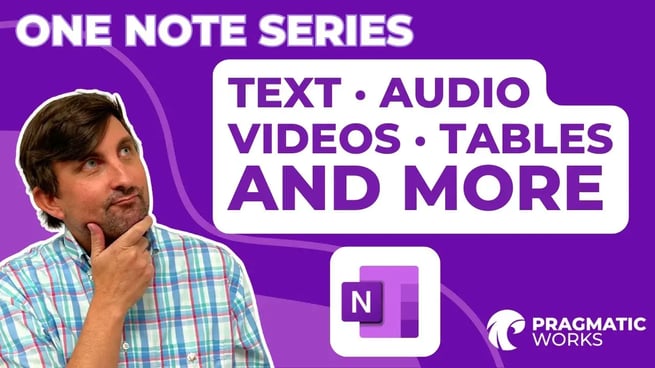
In episode two of the OneNote training series, Matt Peterson explores the powerful tools within Microsoft OneNote that enhance productivity and collaboration. Building on the introduction from episode one, this tutorial focuses on how to insert and format various types of content such as text, drawings, images, audio, video, and tables.
Working with Text
- Users can easily add and format text on any OneNote page.
- Features include bullet lists, highlighting, and standard font styling options similar to Microsoft Word.
- Right-click menus provide quick access to formatting tools.
Drawing Tools
- OneNote includes built-in drawing capabilities ideal for stylus or touch users.
- Users can choose from pens, pencils, and highlighters with customizable colors and thicknesses.
- The Lasso Tool allows selections of hand-drawn content that can be converted from ink to text.
- Pre-built shapes are available, which are useful for graphing or classroom activities.
Inserting Images
- Images can be added from a local device, webcam, or via Bing-powered online search.
- Inserted images can be resized and repositioned alongside other content.
- Text containers and images can be independently moved and layered.
Page Preview Graphics
Matt demonstrates how to enable the “Page Previews” setting under OneNote’s options menu, which allows users to see a preview of the first image and text in each page tab.
Adding Audio
- Users can record audio directly into OneNote by granting microphone access.
- Audio recordings are embedded on the page and can be replayed anytime.
- This feature is helpful for quick notes, classroom instructions, or adding clarity to questions.
Creating Tables
- Tables can be easily created by selecting dimensions (e.g., 2x3) from the Insert menu.
- They can be used to track data such as student names and preferences.
- Right-click options allow for editing rows and columns or deleting the table entirely.
Embedding Videos
- Online videos (e.g., YouTube) can be embedded by pasting the video URL via the Insert menu.
- Users can watch videos directly within the OneNote page or follow a link to the video source.
- Video containers are resizable for a better viewing experience.
Matt concludes the episode by encouraging viewers to explore more in future videos, where he will delve into additional OneNote features such as file attachments, collaboration permissions, and educational tools in class notebooks.
If you're interested in elevating your digital note-taking skills or expanding into other Microsoft tools like Power BI, Power Apps, Azure, or SQL, Pragmatic Works offers a wide range of training solutions to support your growth.
Don't forget to check out the Pragmatic Works' on-demand learning platform for more insightful content and training sessions on OneNote and other Microsoft applications. Be sure to subscribe to the Pragmatic Works YouTube channel to stay up-to-date on the latest tips and tricks.




-1.png?width=406&name=Blog%20Post%20Featured%20Image%20(16)-1.png)


-1.png)
Leave a comment