


Check Out Glass Look for Power BI!
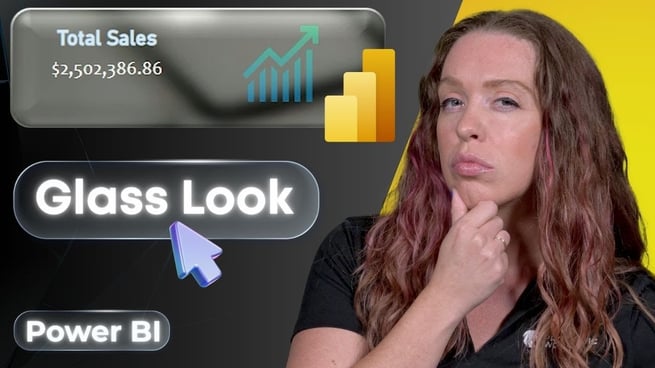
In this Pragmatic Works training session, Microsoft Certified Trainer Allison Gonzalez demonstrates how Power BI report designers can recreate the modern iOS-style glass look using Microsoft PowerPoint. This design trend introduces a sleek, frosted-glass effect that adds depth and a contemporary feel to report visuals. While the effect may not be ideal for every report, Allison shows how it can be an effective way to enhance visual appeal when used thoughtfully.
Why Use PowerPoint for Power BI Background Design?
Allison begins by explaining why PowerPoint is a powerful and often overlooked tool for creating custom Power BI report backgrounds. One of the key advantages is that PowerPoint slides use the same 16:9 aspect ratio as Power BI reports, making it easy to design a canvas that fits perfectly when imported.
- PowerPoint allows precise layout control.
- Stock images are readily available through Microsoft 365.
- Design elements can be exported as images for Power BI use.
Preparing the Background Image
The process starts by taking a screenshot of the existing Power BI report page. This helps identify where visuals are placed so the glass panels can be positioned accurately. Allison then inserts a stock image from PowerPoint’s built-in image library, recommending images with consistent coloring to avoid readability issues when visuals are layered on top.
Once the image is selected, it is resized to fill the entire slide. To achieve the glass effect, two versions of the same image are needed: a blurred version and a clear version.
- Duplicate the slide containing the background image.
- Reduce the image sharpness to zero to create a blurred effect.
- Set the blurred image as the slide background using “Picture or texture fill.”
- Paste the original, clear image on top of the blurred background.
Creating the Glass Panels for Visuals
With the background in place, Allison moves on to creating the glass containers for Power BI visuals. Rounded rectangles are used to mirror the soft, curved style common in glass-themed interfaces.
Each shape is configured using “Slide background fill,” allowing it to reflect the blurred background underneath. This is a critical step that creates the illusion of looking through frosted glass.
- Use rounded rectangles to soften visual edges.
- Apply slide background fill to mimic transparency.
- Adjust size and placement later to match report visuals.
Enhancing the Glass Effect with Formatting
To make the panels more realistic, Allison fine-tunes the formatting options. A gradient outline is applied to the shapes, fading from white to transparent gray. This subtle border helps define the edges without overpowering the design.
Additional enhancements include:
- Applying a 3D bevel to create depth.
- Adjusting shadow settings for a soft, centered glow.
- Fine-tuning transparency and size for a polished look.
These effects work together to give the impression that the visuals are floating above the background while still blending into the overall design.
Aligning Visuals and Exporting the Background
Once the glass panels are styled, Allison overlays the screenshot of the Power BI report to align each panel precisely with the visuals. This ensures consistency when the background is imported back into Power BI.
After alignment is complete:
- Remove the screenshot reference.
- Save the slide as an image file such as JPEG or PNG.
- Choose to export only the current slide.
Applying the Background in Power BI
In Power BI, the exported image is uploaded as a canvas background. The background is set to “Stretch” to eliminate unwanted spacing. From there, minor visual adjustments may be needed to ensure labels and titles remain legible against the new design.
Final Thoughts
Allison concludes by emphasizing that while the glass look is not suitable for every report, it offers a creative option for modern dashboards. Designers should always prioritize readability and usability, making adjustments as needed based on color choices and visual density.
Pragmatic Works continues to publish multiple Power BI training videos each week and offers an extensive on-demand learning platform for those looking to dive deeper into data visualization, layout design, and Power BI best practices.
Don't forget to check out the Pragmatic Works' on-demand learning platform for more insightful content and training sessions on Power BI and other Microsoft applications. Be sure to subscribe to the Pragmatic Works YouTube channel to stay up-to-date on the latest tips and tricks.
Sign-up now and get instant access

ABOUT THE AUTHOR
Allison graduated from Flagler College in 2011. She has worked in management and training for tech companies for the past decade. As a Microsoft Certified Trainer, her primary focus is helping our customers learn the ins and outs of Power BI, along with Excel and Teams.
Free Community Plan
On-demand learning
Most Recent
private training


-1.png)
Leave a comment