In a recent training video, Allison Gonzalez, a Microsoft Certified Trainer at Pragmatic Works, walks viewers through the benefits and best practices of embedding Power Apps into SharePoint. This integration transforms a static intranet into a dynamic, interactive workspace where users can submit forms, trigger workflows, and update records—all without leaving SharePoint.
Why Embed Power Apps in SharePoint?
- Turns SharePoint from a passive document repository into a two-way interactive tool.
- Allows users to engage directly with data and processes within their familiar workspace.
- Streamlines internal operations by centralizing access and functionality.
Licensing Considerations
- Standard Microsoft 365 licenses cover apps using SharePoint as the sole data source.
- Premium connectors (e.g., Dataverse, SQL) require upgraded licenses—even when embedded.
- Embedding does not bypass licensing or data access permissions.
Environment and Permissions
- Apps must be stored in a shared, production-ready environment—not personal or sandbox environments.
- Users must have access to both the Power App and the SharePoint page where it’s embedded.
- Permission mismatches often result in blank apps or error messages.
Data Source Integrity
- Changes to SharePoint list structures (e.g., renaming columns) can break embedded apps.
- Coordination between site owners and app makers is essential to maintain functionality.
Audience and Visibility
- Ensure the app’s visibility aligns with the SharePoint site’s audience.
- Test permissions with non-admin users to prevent unauthorized data exposure.
Step-by-Step Embedding Process
- Create or edit a SharePoint page (preferably a new one to avoid slow load times).
- Add a one-column section to the page layout.
- Use the toolbox to insert the Power Apps web part.
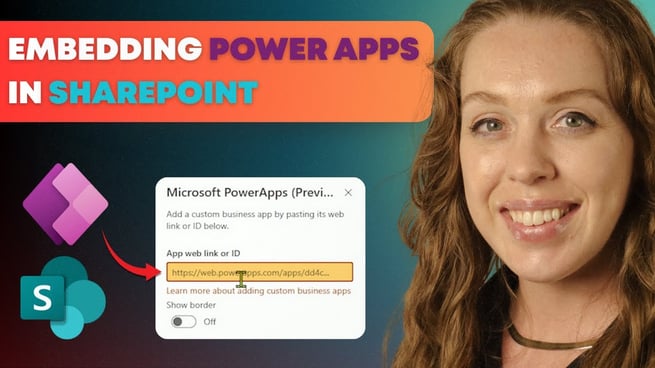
- Paste the app’s web link or ID into the web part.
- Watch for environment warnings and adjust app location if needed.
- Publish the page to make the embedded app visible to users.
Final Thoughts
Allison Gonzalez emphasizes that embedding Power Apps into SharePoint is a powerful way to modernize internal processes. However, success depends on aligning technology with user access, licensing, and permissions. When done correctly, SharePoint becomes a centralized hub for all team activities, enhancing productivity and user experience.
For more in-depth training, Pragmatic Works offers on-demand SharePoint automation classes that explore these concepts further.
Don't forget to check out the Pragmatic Works' on-demand learning platform for more insightful content and training sessions on SharePoint and other Microsoft applications. Be sure to subscribe to the Pragmatic Works YouTube channel to stay up-to-date on the latest tips and tricks.









-1.png)
Leave a comment