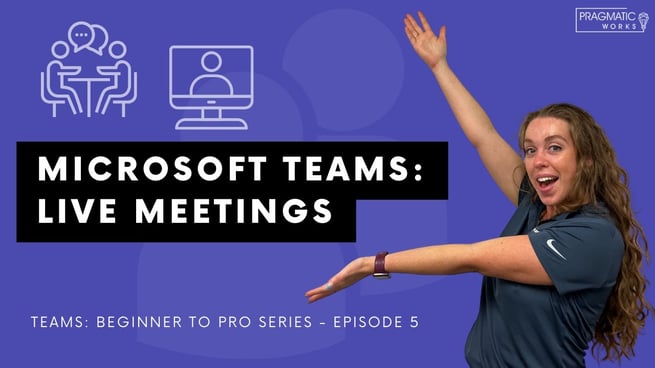
In this episode of the Microsoft Teams series, Allison Gonzalez, a trainer at Pragmatic Works, explores Live Events in Microsoft Teams. Building on previous topics such as Teams basics, channels, chats, and meetings, Allison focuses on how organizations can effectively host large-scale, one-to-many communications using live events.
Understanding Live Events in Microsoft Teams
Allison Gonzalez explains that live events are specifically designed for one-to-many communication. Unlike regular meetings where participants can actively engage, live events are more controlled environments where the host leads the session and attendees primarily watch the content.
This format is ideal for:
- Company-wide announcements
- Webinars and training sessions
- Large presentations or broadcasts
- Public or external-facing events
Recommended Setup for Best Performance
To ensure a smooth experience, Allison emphasizes the importance of using the latest version of the Microsoft Teams desktop or mobile app. While Teams can be accessed via a web browser, the desktop or mobile applications provide better performance and reliability, especially for large meetings and live events.
She strongly recommends:
- Using the desktop app for presenters and producers
- Avoiding browser-based access for critical sessions
- Keeping Teams updated to the latest version
Production Options for Live Events
Live events offer flexible production setups depending on the scale and complexity of the event. Allison Gonzalez highlights two primary production methods:
- Simple Setup: Using a single webcam and microphone directly from a laptop
- Advanced Production: Multi-camera setups with professional equipment and external production tools
This flexibility allows organizations to choose a setup that aligns with their budget and technical requirements.
Scheduling a Live Event
Scheduling a live event in Microsoft Teams involves several key steps. Allison walks through the process starting from the Teams calendar:
- Navigate to the Teams calendar
- Select New Meeting and choose Live Event
- Enter event details such as title, date, time, and description
- Add presenters and producers
She explains that presenters and producers receive different invitations compared to attendees. Producers have greater control over the event, including starting and stopping the session, managing content, and controlling what is displayed.
Roles and Responsibilities
Understanding roles is critical for a successful live event. Allison Gonzalez outlines the differences:
- Producers: Manage the event flow, control content, and handle technical aspects
- Presenters: Share audio, video, or screen content
- Attendees: View the event and optionally participate through Q&A
Assigning the right roles ensures smooth coordination and minimizes disruptions during the event.
Configuring Event Permissions and Options
Before finalizing the event, organizers must configure permissions and settings. Allison highlights key options available during setup:
- Define audience scope: specific individuals, the organization, or public access
- Enable or disable Q&A functionality
- Allow recordings for producers and attendees
- Select production method: Teams or external tools
These settings help tailor the experience based on the event’s purpose and audience size.
Joining and Managing a Live Event
Once scheduled, organizers and participants can join the event through a shared link. Allison explains that producers have access to a backend interface where they can:
- Manage video and content queues
- Control what attendees see
- Mute participants
- Monitor attendee lists
- Handle Q&A interactions
Attendees, on the other hand, have a simplified experience focused on viewing the content and optionally submitting questions.
Best Practices for Live Events
To maximize effectiveness, Allison Gonzalez shares several best practices:
- Always test audio, video, and device settings before the event
- Use clear titles and descriptions for better communication
- Assign multiple producers for larger events
- Decide in advance whether to enable Q&A
- Share the event link directly instead of forwarding invitations
Conclusion
Allison Gonzalez concludes that Microsoft Teams live events are a powerful tool for delivering structured, large-scale communication. With proper setup, role assignment, and configuration, organizations can create professional and engaging live experiences. Whether using a simple webcam or a full production setup, Teams provides the flexibility needed to meet a wide range of business and training needs.
For those looking to deepen their understanding, Pragmatic Works offers on-demand training and resources to help users master Microsoft Teams and other Microsoft technologies.
Don't forget to check out the Pragmatic Works' on-demand learning platform for more insightful content and training sessions on Teams and other Microsoft applications. Be sure to subscribe to the Pragmatic Works YouTube channel to stay up-to-date on the latest tips and tricks.
 (904) 638-5743





Leave a comment