



Power BI - Organizational Themes - AWESOME New Feature!
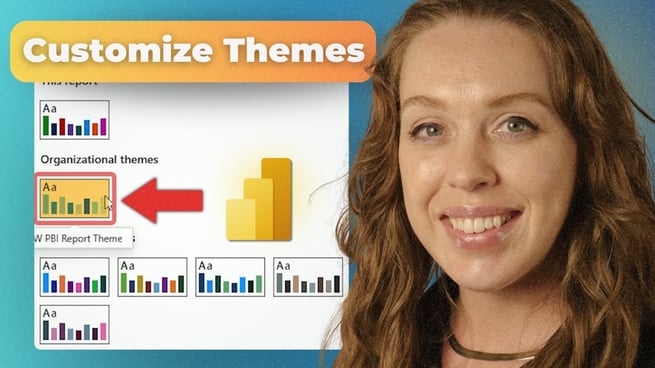
Power BI, a powerful data visualization tool, continues to evolve and bring new features that improve the user experience. One of the latest and most exciting updates introduced in June 2025 is the ability to set organizational-wide themes for Power BI reports. This feature allows businesses to maintain a consistent and professional look for their reports with minimal effort, making it an essential tool for organizations. Let’s dive into the details of this new feature and see how it can elevate your Power BI experience. Allison Gonzalez
What Are Organizational Themes?
In simple terms, an organizational theme allows companies to set a default visual style for their Power BI reports that is applied consistently across all reports in the organization. This feature ensures that when users open Power BI Desktop, they can access the themes set up by the administrators, alongside the default Power BI themes.
Key Features:
- Users can now access organization-specific themes in addition to the default Power BI themes.
- Themes are stored as JSON files, allowing for easy upload and customization.
- Admins can set default themes for their organization, ensuring a unified look across reports.
- This feature is available in the Power BI Admin Center, and it’s currently in preview mode.
How to Set Up Organizational Themes
To start using organizational themes, users need access to the Power BI Admin Center. This feature can be enabled and customized directly within the admin portal. Below is a step-by-step guide on how to set it up:
- Access the Admin Center:
- Open Power BI Service (PowerBI.com) and navigate to the admin portal by selecting the gear icon.
- From the portal, locate the "Organizational Themes" section.
- Upload a Theme:
- Admins can upload themes by selecting the "Add Theme" option.
- Choose the desired JSON file (which contains the theme’s design specifications) from your computer.
- After selecting the file, admins can provide a name and description for the theme. While optional, these details help differentiate themes, especially in large organizations.
- Enable the Theme in the Gallery:
- Once the theme is added, it’s important to enable it in the theme gallery.
- Simply click on the eye icon to ensure the theme appears in the gallery and is available for all users.
- Select the Organizational Theme in Power BI Desktop:
- After enabling the theme, users can now go to the Power BI Desktop and access the new organizational theme from the theme dropdown in the view ribbon.
- The theme will be immediately available for use without requiring a page refresh.
Customizing Themes
Customization is a significant part of Power BI’s new theme feature. Organizations can tweak the theme as needed to match their branding or reporting requirements. The new theme will automatically apply across all reports, ensuring uniformity. However, users can still make adjustments to individual visual elements to suit specific needs.
If you've made extensive modifications to a report prior to applying the theme, some visuals might need to be manually adjusted to fit the new design. This is especially true for text visibility and the alignment of visual elements. The ability to tweak individual visuals helps users fine-tune reports after applying a global theme.
Benefits of Organizational Themes
- Consistency: Every report created within the organization will adhere to the same visual standards, ensuring brand consistency across all reports.
- Professionalism: By using a theme, organizations can make their data presentations look more polished and professional with minimal effort.
- Ease of Use: Administrators can set and manage themes in one central location, making it easier for users to access the right theme for their reports.
Best Practices for Using Organizational Themes
- Use Descriptive Theme Names: When uploading multiple themes, it’s crucial to give each theme a clear and descriptive name to avoid confusion, especially when used across various departments.
- Design for the Audience: Consider whether your organization’s reports should be bold and colorful or clean and minimal. The theme should reflect the type of data being presented and the preferences of the audience.
- Regular Updates: As Power BI continues to evolve, keep an eye out for updates and new features related to themes. Microsoft often tweaks preview features based on user feedback.
Further Learning
If you’re new to Power BI themes, you can deepen your understanding by taking a deeper dive into JSON and theme customization. Allison Gonzalez, a Microsoft-certified trainer at Pragmatic Works, has created a JSON class that explains how to not only set up themes but also how to modify visuals and add images to your themes. For more detailed tutorials, check out Allison’s “Alison’s Art School” series, which covers everything from color theory to report layout design.
Conclusion
The introduction of organizational themes in Power BI brings a significant advantage to businesses looking to standardize their reports and presentations. By allowing admins to set default themes that all users can access, Power BI ensures consistency, professionalism, and ease of use across the board. Whether you’re working with financial reports, HR data, or marketing analytics, applying a custom theme is an excellent way to elevate your presentations and make your data stand out.
Don't forget to check out the Pragmatic Works' on-demand learning platform for more insightful content and training sessions on Power BI and other Microsoft applications. Be sure to subscribe to the Pragmatic Works YouTube channel to stay up-to-date on the latest tips and tricks.
Sign-up now and get instant access

ABOUT THE AUTHOR
Allison graduated from Flagler College in 2011. She has worked in management and training for tech companies for the past decade. As a Microsoft Certified Trainer, her primary focus is helping our customers learn the ins and outs of Power BI, along with Excel and Teams.
Free Community Plan
On-demand learning
Most Recent
private training




-1.png)
Leave a comment