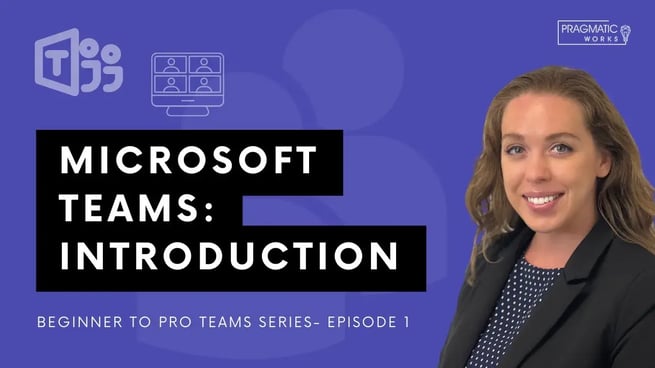
In this video, Allison Gonzalez, a trainer at Pragmatic Works and a Microsoft 365 Certified Teams Administrator Associate, introduces Microsoft Teams and explains how it serves as an all-in-one collaboration and communication platform. This marks the beginning of a series designed to help users fully understand and utilize Microsoft Teams effectively in both professional and organizational environments.
What is Microsoft Teams?
Allison Gonzalez explains that Microsoft Teams is a centralized platform built to support collaboration through chat, meetings, calls, and file sharing. It allows users to communicate in real time without relying on slower methods like email. Teams integrates seamlessly with the Microsoft ecosystem, making it highly efficient for organizations already using Microsoft tools.
- Real-time chat with individuals or groups
- Voice and video calling capabilities
- Integrated meetings and scheduling
- File sharing and collaboration
- Seamless integration with Microsoft apps like SharePoint, OneDrive, Power BI, and OneNote
Why Use Microsoft Teams?
According to Allison Gonzalez, one of the main advantages of Microsoft Teams is its ability to unify multiple communication tools into a single platform. This reduces the need to switch between applications and improves productivity.
- Centralized communication in one platform
- Faster collaboration compared to email
- Easy access to shared files and resources
- Integration with existing Microsoft 365 tools
- Improved team organization through structured environments
Understanding Teams and Channels
Allison emphasizes the importance of structuring Teams properly. A “Team” represents a larger group such as a department or project, while “Channels” are used to organize conversations by specific topics within that team.
- Create fewer Teams with more Channels for better organization
- Use Channels to separate discussions by topic or function
- Set Teams as private when handling sensitive or restricted information
- Track conversations and files efficiently within each Channel
Getting Started: Logging In and Downloading
Users can access Microsoft Teams through a browser or download the desktop application. Allison Gonzalez recommends using the desktop version because it offers more features and a better user experience.
- Go to teams.microsoft.com
- Sign in using Microsoft 365 credentials
- Choose between web version or desktop app
- Download the desktop app for full functionality
Tour of the Microsoft Teams Interface
The Microsoft Teams interface is designed with a left-hand navigation panel that provides access to key features. Allison walks through each section to help users understand its purpose.
- Activity: Displays notifications, mentions, and replies
- Chat: Shows individual and group conversations
- Teams: Contains all Teams and Channels
- Calls: Enables voice and video calls
- Calendar: Syncs with Outlook for meetings
- Files: Stores and shares documents via OneDrive
- Apps: Provides access to integrated Microsoft and third-party tools
Customizing Settings and Notifications
Allison Gonzalez highlights the importance of configuring settings to improve productivity. Notifications should be adjusted to ensure users receive important updates without being overwhelmed.
- Set notification preferences for activity, chat, and channels
- Customize alerts for mentions, replies, and messages
- Choose between banner, feed, or no notifications
- Adjust sound and preview settings
- Modify notification settings per channel
Personalization and User Experience
Microsoft Teams allows users to personalize their experience to match their preferences. This includes visual settings and layout adjustments.
- Switch between light, dark, and high contrast themes
- Adjust chat density (comfy or compact view)
- Reorder navigation menu items
- Pin important chats for quick access
- Set user status such as Available, Busy, or Do Not Disturb
Key Takeaways
Allison Gonzalez concludes that Microsoft Teams is a powerful collaboration tool that enhances communication, organization, and productivity. By understanding its structure and customizing settings, users can optimize their workflow and make the most out of the platform.
- Microsoft Teams centralizes communication and collaboration
- Integration with Microsoft tools enhances efficiency
- Proper use of Teams and Channels improves organization
- Customizing notifications is essential for productivity
- The desktop app provides the best experience
This introductory guide lays the foundation for deeper learning in future videos, helping users become more confident and efficient when using Microsoft Teams.
Don't forget to check out the Pragmatic Works' on-demand learning platform for more insightful content and training sessions on Microsoft Teams and other Microsoft applications. Be sure to subscribe to the Pragmatic Works YouTube channel to stay up-to-date on the latest tips and tricks.

 (904) 638-5743







Leave a comment