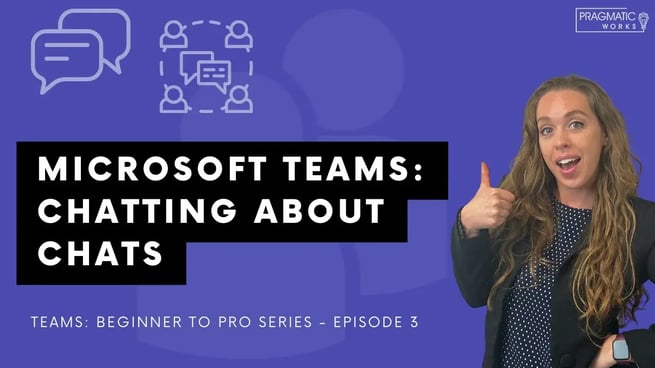
In this episode of the Microsoft Teams series, Allison Gonzalez, a trainer at Pragmatic Works, explores the functionality of chats in Microsoft Teams. Building on previous lessons covering Teams, channels, and overall navigation, this session focuses on how users can effectively communicate using individual chats, group chats, and external chats. Through a combination of conceptual explanations and live demonstrations, Allison provides a practical guide to managing conversations, organizing chats, and maximizing productivity within Teams.
Understanding the Types of Chats
Allison begins by explaining that Microsoft Teams supports three primary types of chats, each serving a different communication need:
- Individual Chats: One-on-one conversations between two users.
- Group Chats: Conversations involving multiple participants within the organization.
- External Chats: Chats with users outside the organization, typically with limited functionality for security purposes.
These chat types allow flexibility in communication, whether users are collaborating internally or connecting with external partners.
Starting and Managing Chats
To initiate a chat, Allison demonstrates the use of the “New Chat” button. Users can search for individuals, groups, or email addresses to begin a conversation. Microsoft Teams also prevents duplicate chats by automatically pulling up existing conversations when a user starts typing a name.
Additionally, Teams clearly identifies external participants, ensuring users are aware when they are communicating outside their organization.
Exploring Chat Features and Formatting Options
One of the most powerful aspects of Teams chat is its rich formatting capabilities. Allison highlights several tools available within the compose box:
- Text formatting options such as bold, italic, underline, and strikethrough
- Font color changes and text highlighting
- Paragraph styles including headings and structured layouts
- Bulleted and numbered lists for better organization
- Quote sections to emphasize specific content
Users can also insert links with custom display text, making messages cleaner and easier to read. A standout feature is the ability to insert code snippets with proper formatting by selecting the appropriate programming language.
Additional Chat Tools and Features
Beyond text formatting, Teams provides several interactive features to enhance communication:
- Mark messages as Important or Urgent (urgent messages notify recipients repeatedly)
- Attach files from OneDrive or a local device
- Use emojis, GIFs, and memes (depending on organizational settings)
- Send Praise badges to recognize team members
- Schedule or start meetings directly from a chat
However, Allison emphasizes that many of these features are restricted in external chats to maintain data security. External conversations typically allow only basic formatting and message importance settings.
Working with Group and External Chats
Creating group chats is straightforward—users simply add multiple participants when starting a chat. Group chats can be renamed and expanded by adding more members. However, Allison advises caution when adding new participants to existing chats, as they gain access to all prior messages.
When external users are included in a group chat, available features become limited for the entire conversation, reinforcing security protocols.
Organizing the Chat Pane
To manage a busy chat environment, Allison introduces several organizational tools:
- Pinning Chats: Users can pin up to 15 chats for quick access and arrange them in any order.
- Hiding Chats: Removes inactive or unnecessary chats from view while keeping them accessible later.
- Muting Conversations: Reduces notifications without removing the chat.
- Filtering Contacts: Displays only chats with saved contacts for a cleaner interface.
These features help users maintain a streamlined and efficient workspace, especially when handling multiple conversations daily.
Chats Within Channels
Allison concludes by distinguishing between standard chats and channel conversations. In channels, chats appear as posts, which are tied to specific topics. This structure allows teams to:
- Keep discussions organized by subject
- Add subject lines and announcements
- Control who can reply (e.g., moderators only)
- Post messages across multiple channels simultaneously
This centralized approach ensures that all relevant discussions remain accessible and easy to reference within the appropriate context.
Conclusion
In this comprehensive walkthrough, Allison Gonzalez demonstrates how Microsoft Teams chat features can enhance collaboration, organization, and communication. By understanding the differences between chat types, leveraging formatting tools, and organizing conversations effectively, users can significantly improve their productivity. Whether working with individuals, teams, or external partners, mastering Teams chat functionality is essential for modern workplace communication.
Don't forget to check out the Pragmatic Works' on-demand learning platform for more insightful content and training sessions on Microsoft Teams and other Microsoft applications. Be sure to subscribe to the Pragmatic Works YouTube channel to stay up-to-date on the latest tips and tricks.







Leave a comment