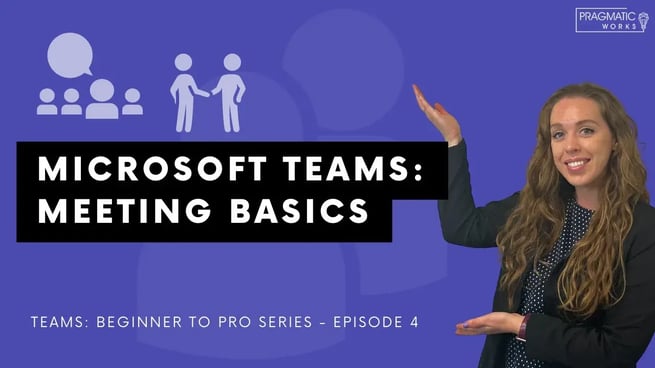
In this fourth episode of the Microsoft Teams series from Pragmatic Works, Allison Gonzalez introduces viewers to the fundamentals of joining and navigating Microsoft Teams meetings. As a trainer at Pragmatic Works, Allison focuses on helping beginners feel confident when entering a Teams meeting for the first time, especially those transitioning from other meeting platforms.
Overview of the Microsoft Teams Series
This episode builds on previous lessons in the series, where Allison Gonzalez covered:
- Introduction to Microsoft Teams
- Understanding Teams and Channels
- Using Chat Features
Now, the focus shifts to meetings—one of the most essential collaboration tools within Microsoft Teams.
Why Use the Desktop App for Meetings?
Allison emphasizes that users should join meetings through the Microsoft Teams desktop application whenever possible. Compared to the web version, the desktop app provides a more stable and feature-rich experience. This ensures smoother navigation and better access to all meeting functionalities.
Key Meeting Navigation Features
Once inside a Teams meeting, users will notice several important icons and controls located at the top of the interface. Allison Gonzalez walks through the most essential features:
- Participants Panel: Displays all attendees in the meeting. Users can mute themselves or, if they are hosts, mute others.
- Chat Panel: Allows participants to send messages, share links, and attach files. This chat is saved and accessible even after the meeting ends.
- Reactions: Enables users to quickly respond using emojis or raise their hand to ask questions without interrupting the speaker.
- Raise Hand Feature: A structured way to participate, especially useful in large meetings.
Understanding Meeting Chat and Collaboration
The meeting chat is a powerful tool for collaboration. Allison explains that users can:
- Send formatted messages
- Mark messages as important or urgent
- Attach files from OneDrive or local devices
- Share links and resources
Since chat history is saved, participants can revisit discussions and access shared materials after the meeting concludes.
Using Reactions and Engagement Tools
To enhance engagement, Teams offers built-in reactions such as thumbs up, applause, and more. These visual cues appear on screen and help participants communicate quickly without disrupting the flow of conversation. The raise hand feature ensures organized participation and is especially helpful in structured discussions.
Best Practices for Screen Sharing
One of the most critical aspects of meetings is screen sharing. Allison Gonzalez highlights several best practices to ensure a smooth and professional experience:
- Choose the Correct Screen: Users with multiple monitors can select which screen to share.
- Share a Specific Window: Instead of sharing the entire screen, users can share a single application (e.g., Word, Excel, or PowerPoint).
- Protect Privacy: Sharing a specific window prevents accidental exposure of emails, messages, or notifications.
- Open Files in Advance: Ensure that the file or application you want to share is already open before starting the share.
Allison notes that sharing a specific window is often the safest and most professional option, especially during presentations or training sessions.
Practicing Before Your First Meeting
For users new to Microsoft Teams, Allison recommends starting a test meeting with yourself. This allows you to:
- Explore the interface
- Practice using controls
- Test audio and video settings
- Become familiar with screen sharing
This simple step can significantly reduce anxiety and improve confidence during real meetings.
Core Meeting Controls
During a meeting, users have quick access to essential controls, including:
- Turning the camera on or off
- Muting or unmuting the microphone
- Accessing participant lists
- Using chat and reactions
- Starting or stopping screen sharing
Allison Gonzalez demonstrates how intuitive these controls are, making it easy for users to navigate even their first meeting.
What’s Next in the Series?
This episode focuses on the basics, but Allison teases more advanced topics in upcoming videos, including:
- Breakout rooms
- Live events
- Whiteboarding features
- Advanced meeting settings
These future lessons will help users deepen their understanding of Microsoft Teams and unlock more powerful collaboration tools.
Final Thoughts
Allison Gonzalez provides a clear and beginner-friendly introduction to Microsoft Teams meetings. By focusing on essential features and practical tips, she ensures that even first-time users can join meetings with confidence. Whether you're attending a meeting or leading one, mastering these basics is the first step toward effective collaboration in Microsoft Teams.
For those looking to learn more, Pragmatic Works offers on-demand training courses to help users build their skills further.
Don't forget to check out the Pragmatic Works' on-demand learning platform for more insightful content and training sessions on Microsoft Teams and other Microsoft applications. Be sure to subscribe to the Pragmatic Works YouTube channel to stay up-to-date on the latest tips and tricks.
 (904) 638-5743





Leave a comment